Guides
The Six-Step Shopping Trip Test: 19.5 s vs 2.1 s
October 20, 2026 - by Alexandru-Manuel Carabus
PageSpeed gives you a score, not the time a shopper waits. We timed 6 steps on Equitana: 19.5 s on Magento 1, 2.1 s on Magento 2 and Hyvä. Here is how to run the test.
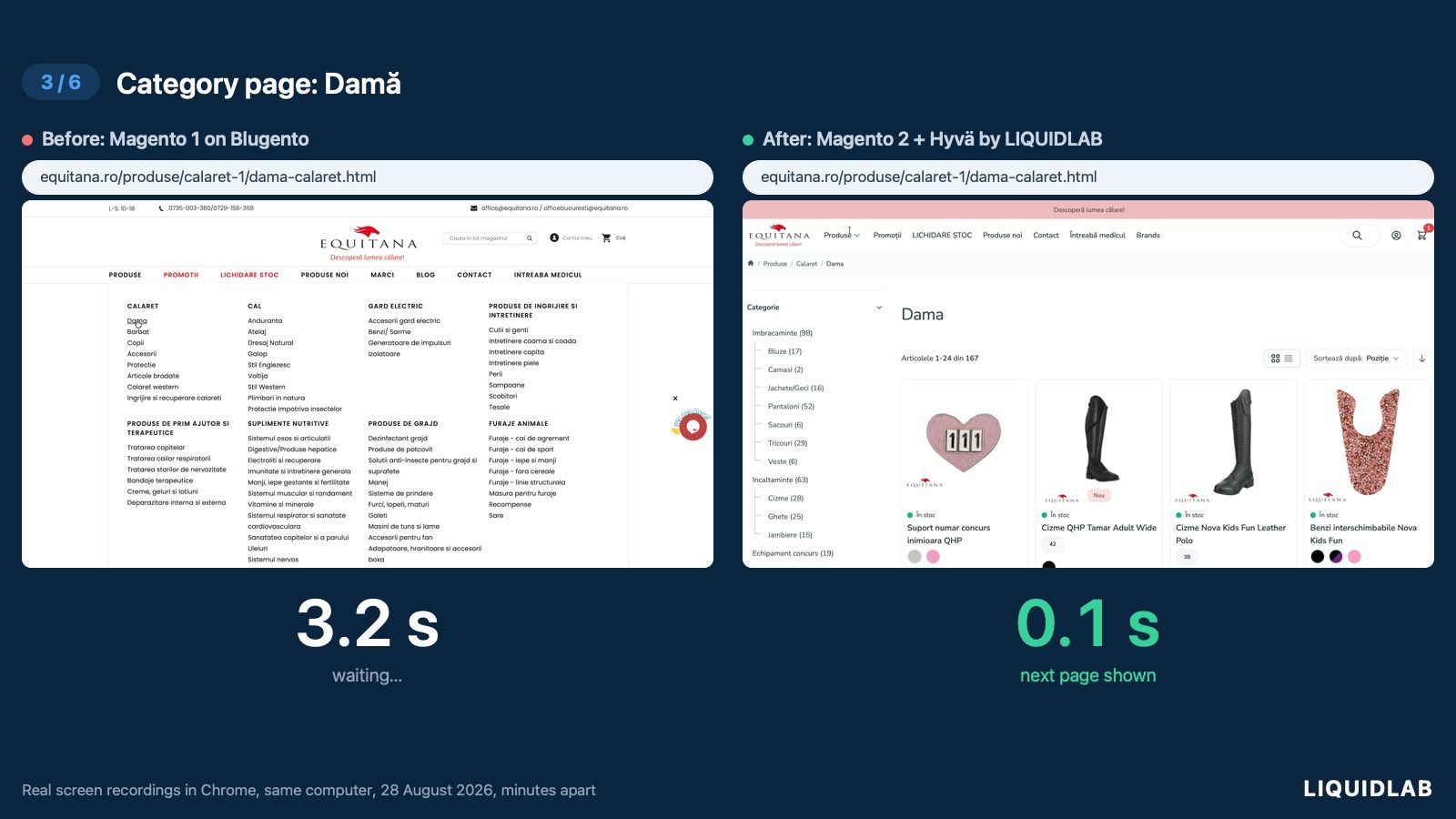
PageSpeed gives you a score. Search Console gives you the last 28 days of data. Neither tells you how long a shopper waits between two clicks on your store today. That is what the six-step test is for: an ordinary shopping trip, recorded on screen and timed step by step.
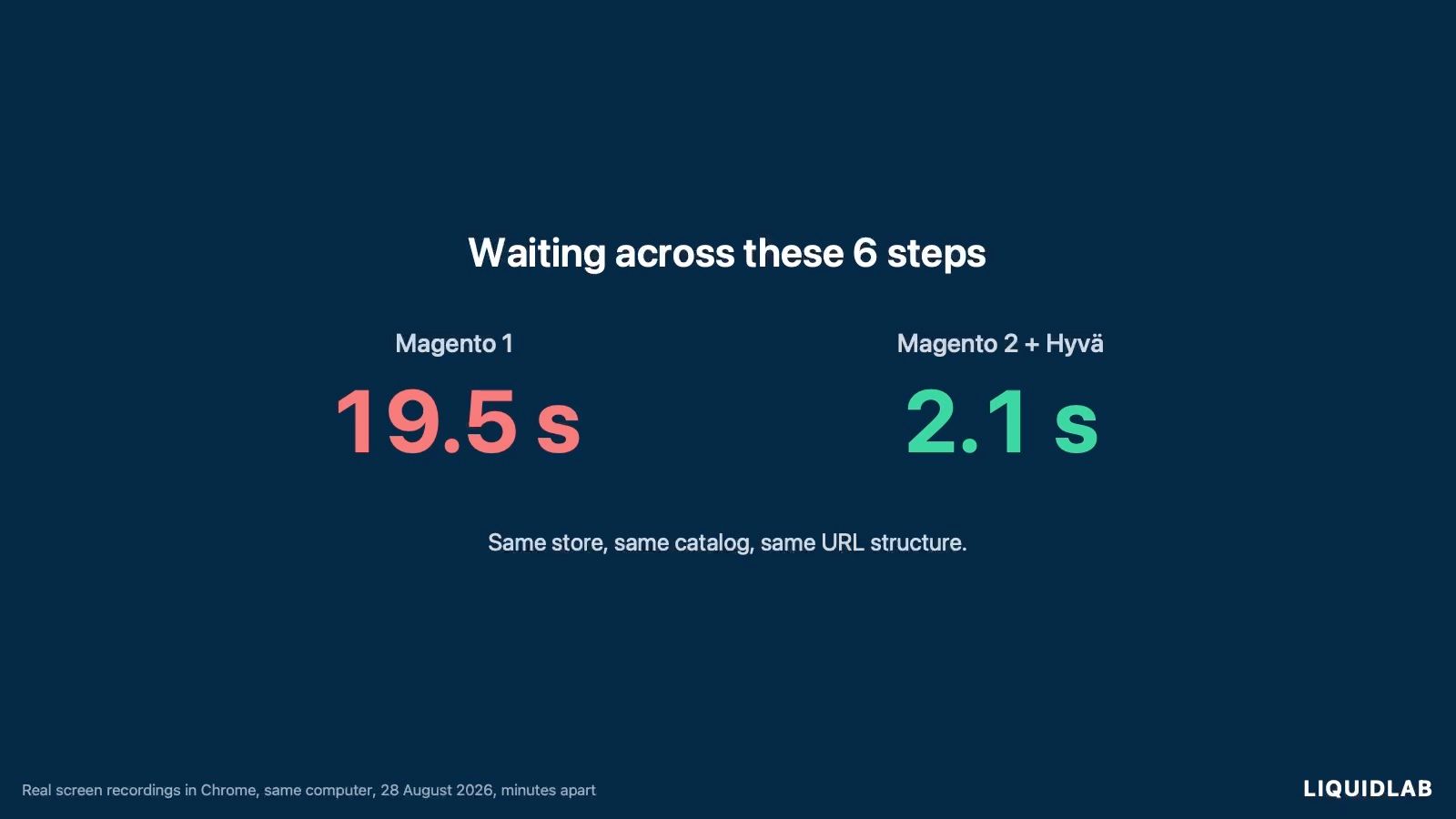
On 28 August 2026 we ran it on Equitana, once on the old store on Magento 1 and once on the new one on Magento 2 and Hyvä, on the same computer, minutes apart. On Magento 1, the 6 steps added up to 19.5 seconds of waiting. On the new store, 2.1 seconds. The video of both trips, side by side, is in the Equitana case study.
The 6 steps and their times
The time for each step, Magento 1 against the new store:
- Home page: 2.5 s against 0.1 s.
- Category Copii (Kids): 5.9 s against 0.1 s.
- Category Damă (Women): 7.0 s against 0.1 s.
- Product page: 1.3 s against 0.2 s.
- Add to cart: 1.7 s against 0.8 s.
- Go to checkout: 1.1 s against 0.8 s.
The two categories took 12.9 of the 19.5 seconds, or 66% of all the waiting on Magento 1. That is the test's first lesson: the time isn't lost evenly, it piles up in 1 or 2 steps. The product and cart steps used different products on the two stores, so this is the same 6 steps, not the same product.
What exactly you time
Each step has a start and a stop, with the same definitions on both stores:
- Start: the first visible reaction to the click. On a normal page change, it's the moment the loading indicator in the tab starts. On add to cart, it's the moment the button or the page shows it is working.
- Stop: the first frame in which the next page appears. On add to cart, the first frame in which the confirmation appears, meaning the window or message saying the product was added.
You don't time until the page has fully loaded. You time what the shopper sees: how long they stare at the old page after clicking.
How to run the test on your store
- Pick the steps. The home page, two categories, a product, add to cart and going to checkout. Include your store's largest category: at Equitana, the categories were the slowest steps.
- Fix the conditions. The same computer, the same browser, the same connection. If you want a comparison, for example the old store and the new one, or your store and a competitor's, record them minutes apart.
- Record the screen. On a Mac, Cmd + Shift + 5 opens screen recording. On Windows 11, the Snipping Tool records video too. Most screen recordings run at 30 or 60 frames per second, so one frame every 33 or 17 milliseconds, which is enough for one decimal.
- Shop like a customer. Click through each step in turn and let the page load before the next click.
- Find the frames. Open the recording in a video editor that steps frame by frame and shows each frame's time. For each step, write down the time of the start frame and of the stop frame, then subtract. We used a small program that compares frames with each other, to find the exact frame where the picture changes.
- Add it up. Round each step to one decimal and add them. The total is the number you compare.
Then repeat the test on a phone: both iPhones and recent Android phones have screen recording in their quick settings. At Equitana we ran the test on a computer only.
4 rules for a fair comparison
- The same definitions on both stores: on the new Equitana store, the cart icon updated 0.15 seconds before the confirmation message. We still stopped the clock at the message, because Magento 1 showed a confirmation window. Confirmation against confirmation.
- Don't retouch the recording: Chrome's translate bubble appeared on both home pages. We left it on both.
- Say what differs: if the product or the cart isn't the same on the two stores, write that next to the result, as we did above.
- Watch for personal data: Chrome's new tab page shows your bookmarks and the address bar's suggestions. If you send the recording to anyone, cover that part first.
What the test tells you, and what it doesn't
The test is a single run, on one computer and one connection. It isn't Core Web Vitals and it isn't a PageSpeed score. Google judges your store on data from real shoppers in Chrome: the 75th percentile over 28 days.
The two complement each other. The test shows you which step is slow, and the real-user data shows you how many shoppers feel it. At Equitana they moved in the same direction: the trip went from 19.5 to 2.1 seconds, and real shoppers on phones now see the main content in 1.1 seconds instead of 4.2. The whole move is in the post on Magento 1 in 2026.
If one step takes far longer than the rest, as the categories did at Equitana, start there. How we get stores past 90 on Core Web Vitals is in the post on Core Web Vitals on Magento. If you're already on Hyvä and the store is still slow, read the post on Hyvä stores that stay slow.
Timed your 6 steps and want to know where the time goes? Book a free strategy call. We'll look at the recording and your store's real data together.
Get the next article in your inbox
One email a month with new articles, speed fixes and the Magento security patches worth applying.